
YDR.chat — Quick Start Guide
The Yale Radiology AI Assistant, for residents, fellows, and attendings. Launches April 27, 2026. Version 1.2 — April 27, 2026.
At a glance
- What it is. A private AI Assistant for the Yale Department of Radiology. It searches real department resources so you don't have to hunt through the intranet, P-drive, SharePoint, or old emails.
- Who can use it. Yale Radiology residents, fellows, and attendings. Other hospital staff do not have access at this time.
- Where to find it. Open ydr.chat in any browser (desktop, phone, or tablet). The legacy URL ydrp.chat also works and lands you in the same place.
- How to sign in. Click Sign in with Yale on the home screen and use your Yale NetID and Yale password. (See "Signing in" below for details — note that this is not your YNHH account.)
- No Yale VPN needed. It works from anywhere — you just need your Duo Mobile app on your phone to approve the login prompt that Yale sends you after you enter your password.
- Chat with it — ask questions in plain English about policies, protocols, schedules, and more.
- Look up contacts — phones, emails, reading rooms, and technical areas across every site.
- Browse department resources — policies and SOPs, tip sheets, and trainee materials.
Important — Not HIPAA-safe. The AI Assistant is not approved for protected health information. Do not paste or type patient identifiers — names, MRNs, dates of birth, accession numbers — or any free text that could identify a specific patient, even indirectly. When in doubt, leave it out.
1. Before you start
A few ground rules that matter more than anything else in this guide.
- This tool is for department work, not general use. Use it for Yale Radiology policies, workflows, contacts, and trainee resources. It is deliberately designed to decline questions outside that scope — it is not a replacement for UpToDate, a search engine, or a general chatbot.
- Do not enter patient information. No names, MRNs, dates of birth, imaging accession numbers, or anything else that could identify a patient.
- Double-check anything that doesn't sound right. This is a chatbot — it can be wrong, incomplete, or out of date. If an answer feels off, even a little, open the cited document and read the source. Then use the Feedback button (section 6) so we can correct it.
- It works on any modern browser. Desktop, tablet, and phone are all supported. Reading-room workstations, home laptops, and personal phones all work the same way once you are signed in.
2. Signing in
Go to ydr.chat. You will see a sign-in screen:
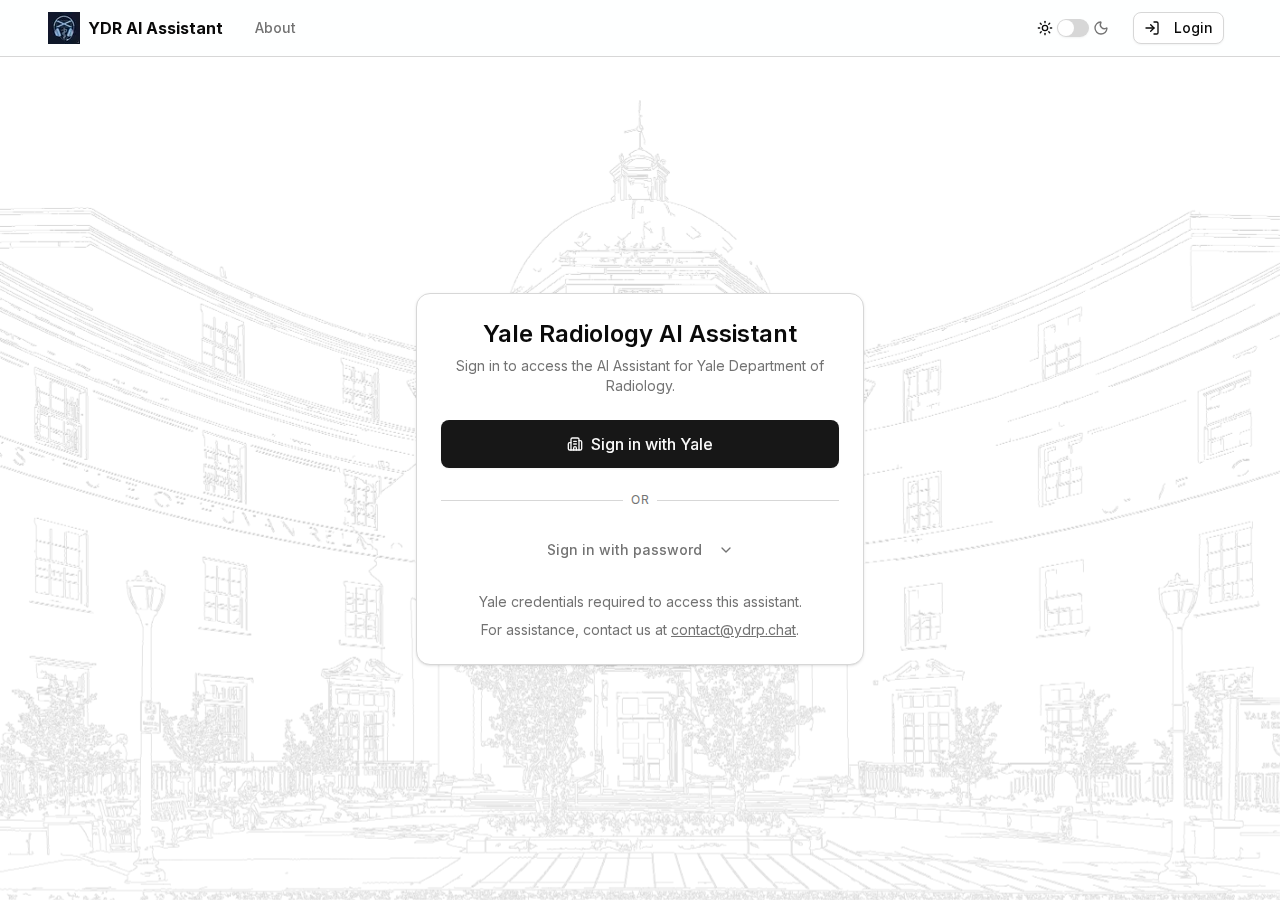
Click Sign in with Yale and authenticate with your Yale NetID and Yale password.
No Yale VPN required — but keep your Duo app handy. You don't need to be on the Yale VPN; ydr.chat works from any internet connection, on any device. What you do need is the Duo Mobile app on your phone. After you submit your Yale password, Yale will push a notification to Duo that you need to approve before you're let in.
Your Yale account is not your YNHH account. This is the same ID you use for Yale email and Yale's central systems — not the clinical-system password you enter at a workstation each morning. If you are not sure what "Yale NetID" means, check with IT or email us (see the end of this guide).
If you are at a reading-room workstation
The Edge browser on reading-room workstations is automatically signed in with your YNHH account, and that will not let you into ydr.chat. Two ways around it:
- Recommended — open an Incognito / InPrivate window. In Edge, press Ctrl + Shift + N for a private window, then go to ydr.chat and sign in with your Yale credentials. Close the window when you are done.
- Or sign out of Edge entirely and sign back in under your Yale account — more work, but it sticks across sessions.
On your own laptop or phone, signing in once is enough — the assistant will remember you for a few hours at a time.
After your first sign-in — switching to light mode
The assistant defaults to a dark theme. If you prefer light mode — especially for printing, sharing screenshots, or reading in a bright reading room — click the sun / moon toggle in the top-right corner of the navigation bar. Your choice sticks for next time.
3. The Knowledge Base
The Knowledge Base is where the AI Assistant pulls its answers from. You can also browse it directly any time you want to read something end-to-end. Open it from the Knowledge Base link in the top navigation bar.
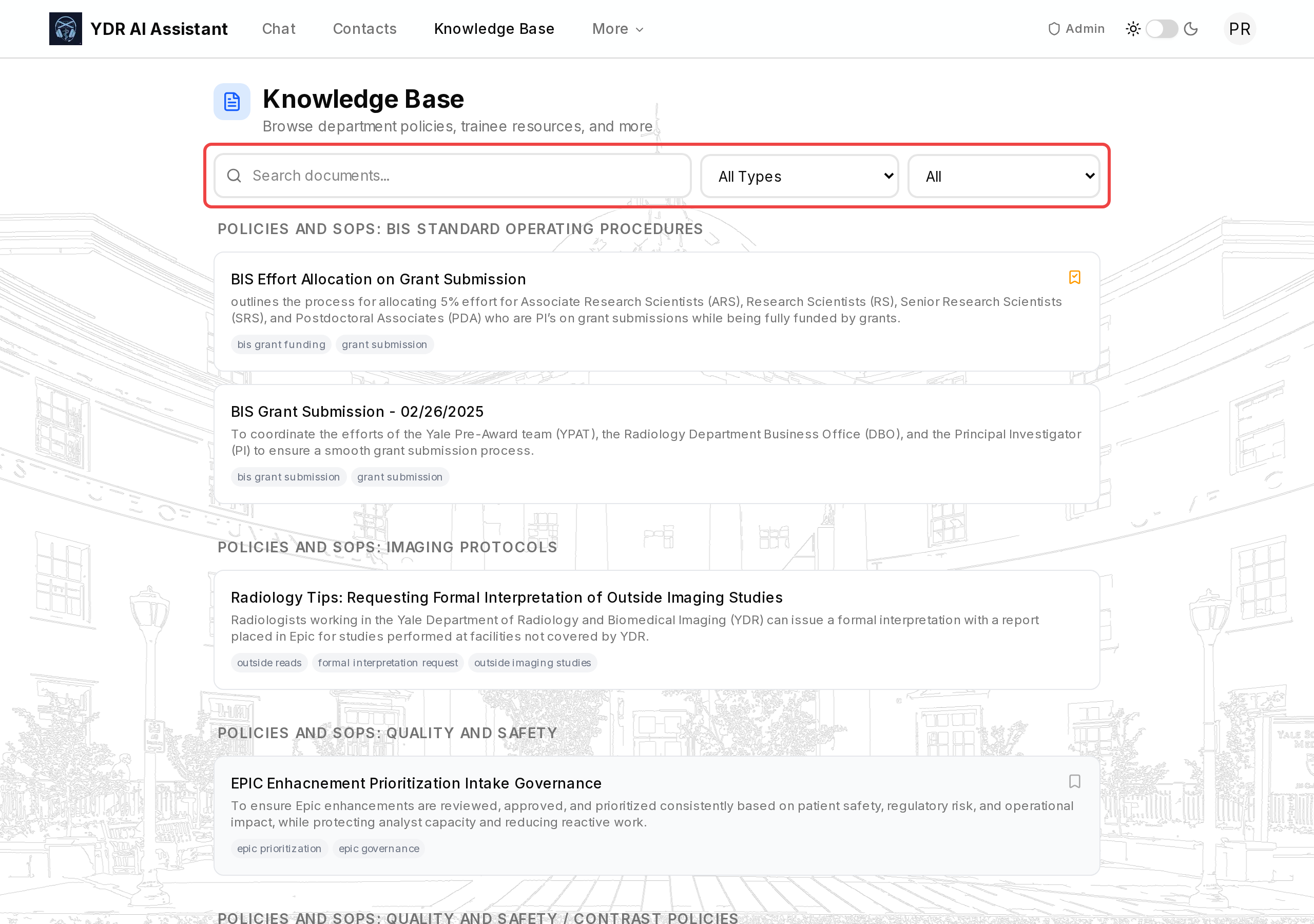
Documents are organized into three types:
- Policies and SOPs — the department's official policies and standard operating procedures: contrast protocols, peer review, on-call rules, research workflows, and so on.
- Tips and Tricks — shorter how-to guides for the software and workflows you use day to day. This is where you will find RAD AI Reporting how-tos and other system-specific tip sheets.
- Trainee Resources — rotation guides and teaching materials for residents and fellows. These are also available on YaleRadres.com; the copies here stay in sync automatically.
You can filter by type, search by keyword, and bookmark any document with the ribbon icon — bookmarked documents are easy to return to from the Knowledge Base filter "Bookmarked".
Clicking a document opens a full reader view with the policy text, tags, and metadata:
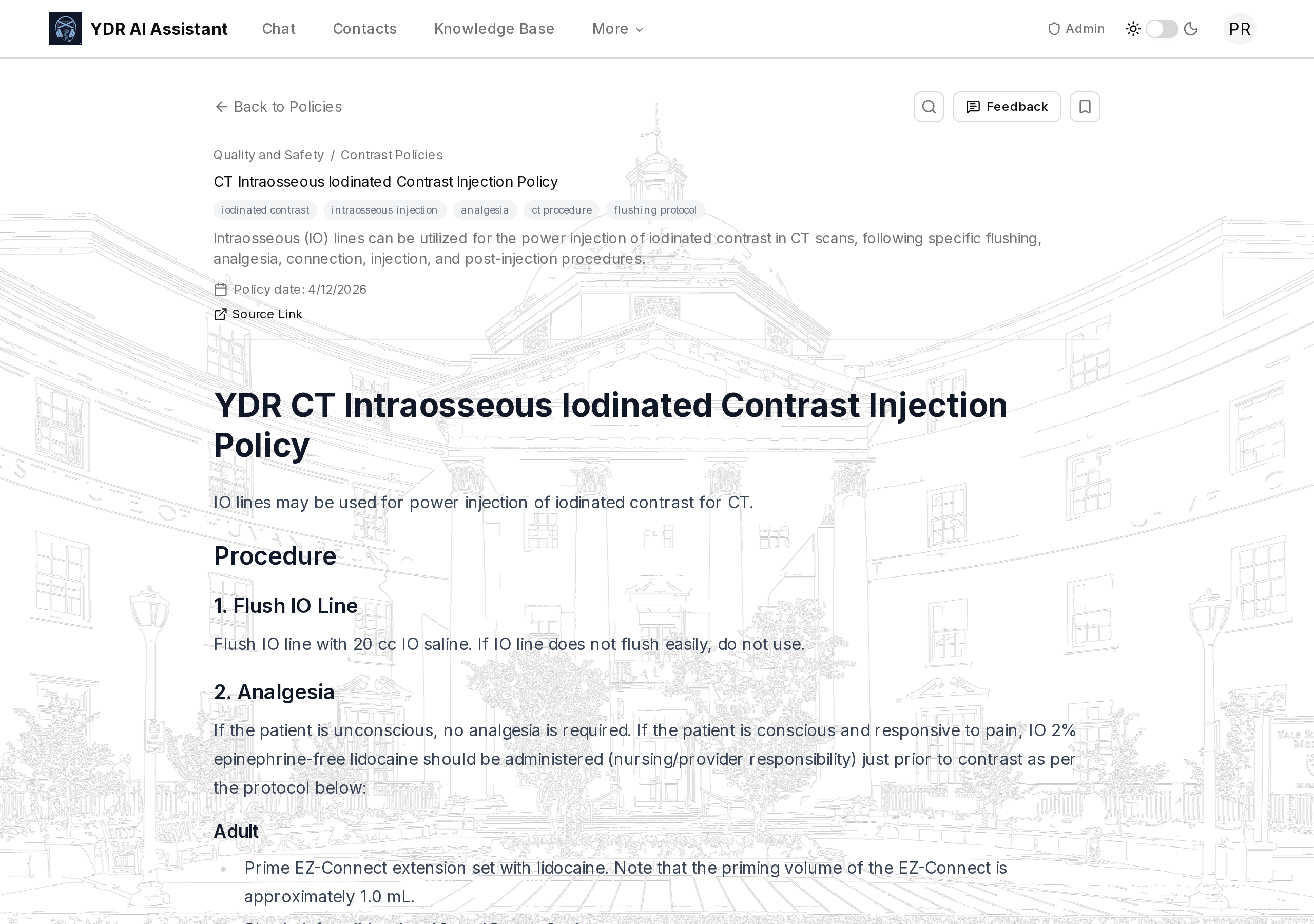
Every answer the AI Assistant gives that references a document will link directly to that document's reader view, so you can always read the source. The next section explains exactly how those links behave.
4. The Contacts directory
The Contacts page is a searchable directory of every person, reading room, and technical area across Yale Radiology — with phone numbers, emails, fax lines, and room locations (if available).
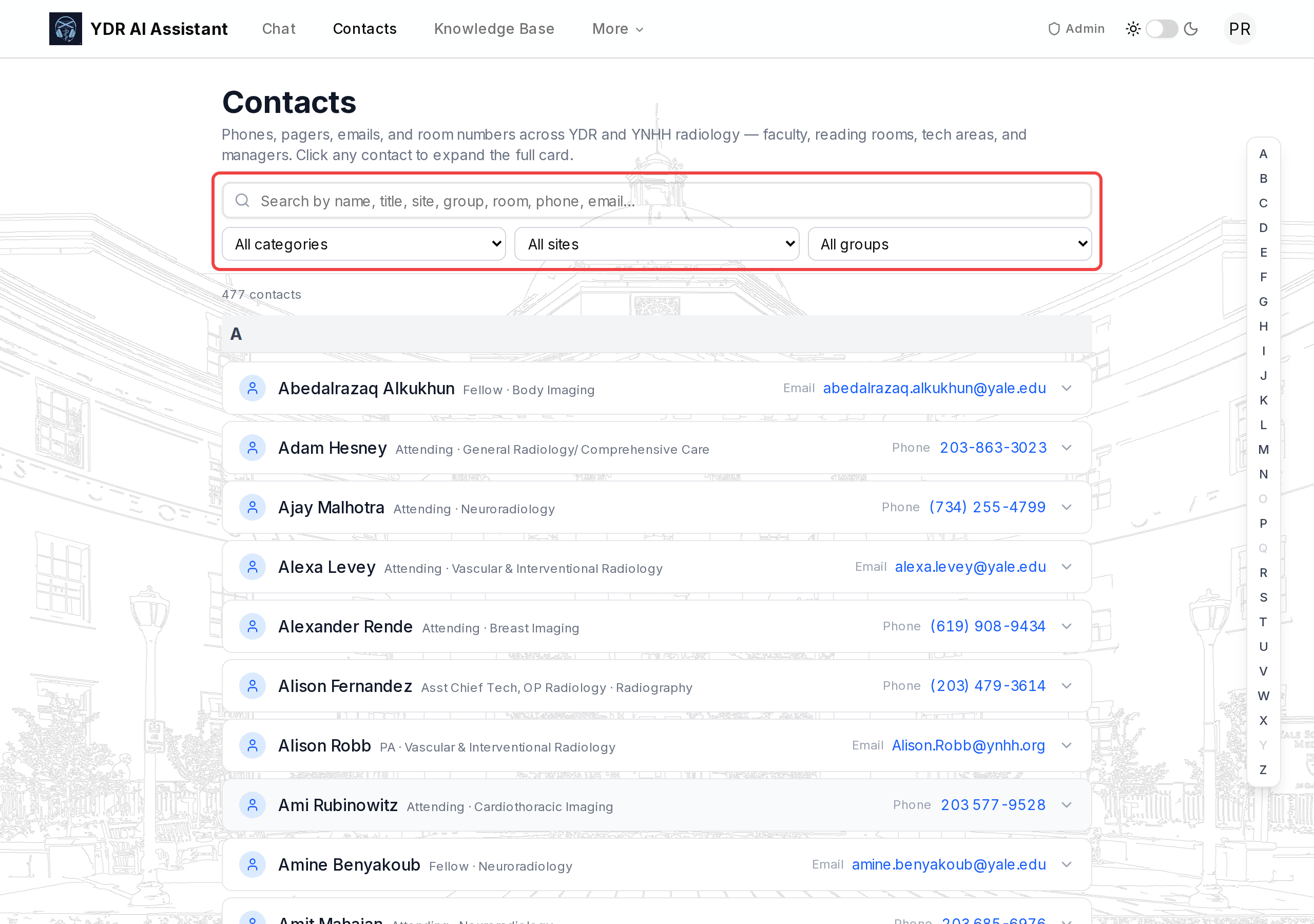
- Search by name, title, site, group, room, phone, or email.
- Filter by category (faculty, reading room, etc.), site, or group.
- Tap a phone number to call; tap an email to compose a message.
- Contacts are organized alphabetically with a jump-list on the side.
You can also look up contacts without leaving the chat — see the next section.
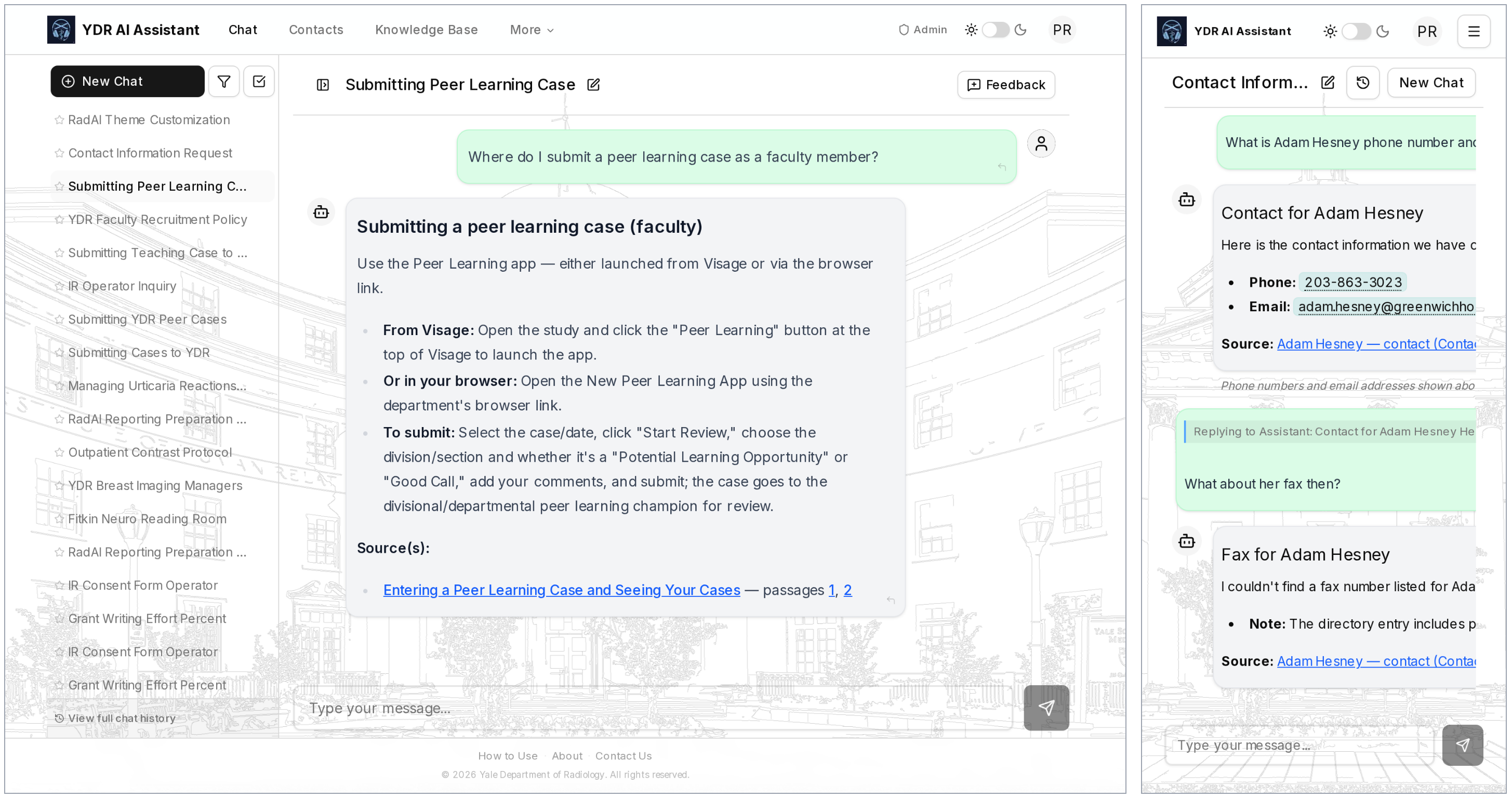
Privacy — phone numbers and emails are never sent to the AI. When you ask the chatbot a contacts question ("What's the senior manager for breast imaging across all sites?"), the AI itself never sees the real phone numbers or email addresses. Behind the scenes they are replaced with placeholder tokens before the model sees anything; the real values are stitched back in only at the very last step, on the server, just before the answer is shown to you.
Every chat answer that includes a phone number or email shows a small italic line below it that reads "Phone numbers and email addresses shown above are inserted directly by ydr.chat — they are never shared with the AI assistant." You can rely on it: if you see that line, no contact details from that answer were sent outside Yale.
The Contacts page itself, the
#nameshortcut inside chat, and any direct lookup you do never go through the AI at all — those are simple database lookups.
5. Chatting with the AI Assistant
The chat is the main way most people will use the assistant. Open it from the Chat link in the navigation bar.
The welcome screen
When you start a new conversation, you will see a welcome card with suggested questions and a quick tip:
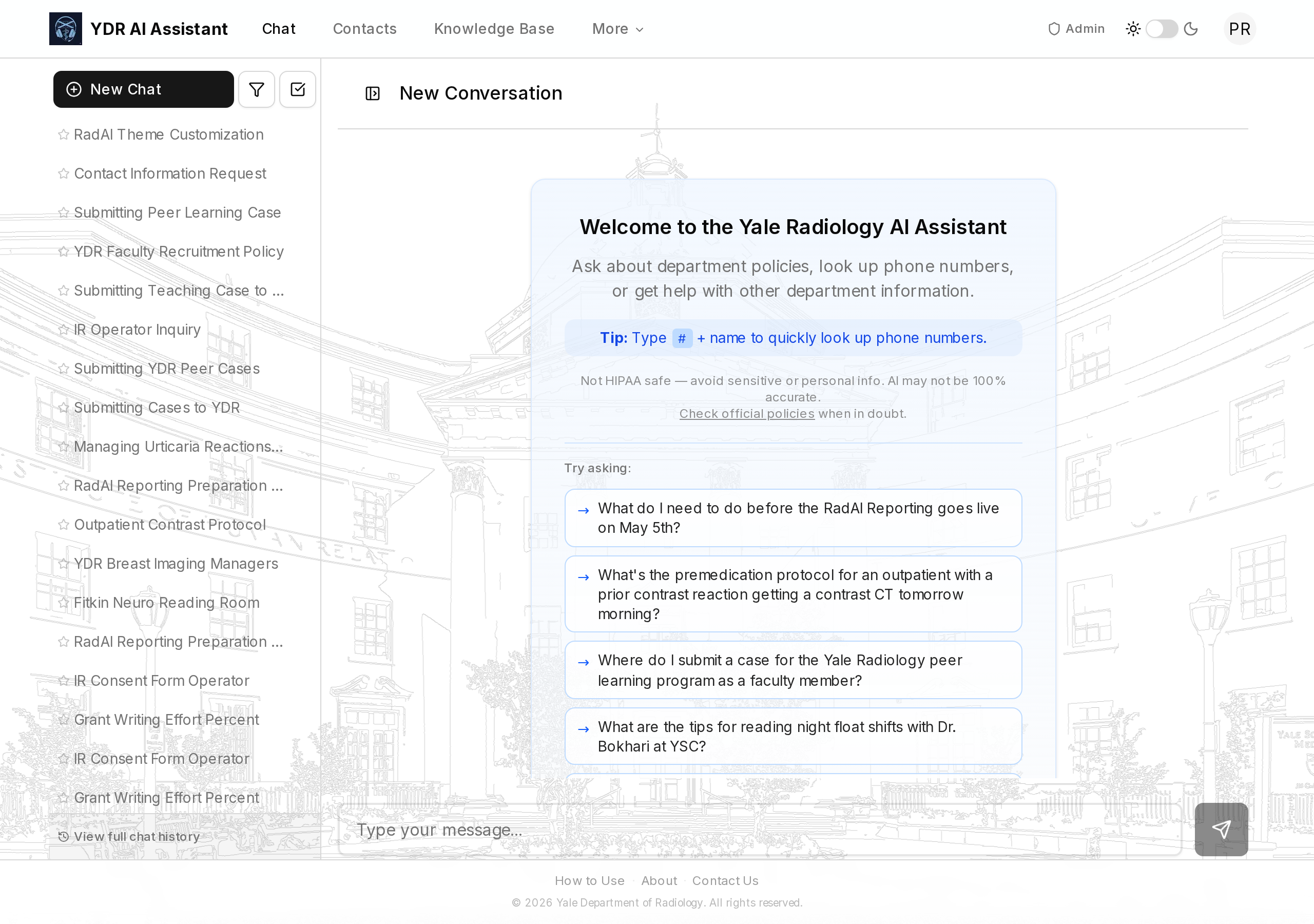
Click any suggested question to run it, or type your own in the box at the bottom. The HIPAA warning is repeated here on purpose — please read it before your first question.
What you can ask
The assistant routes your question to the right specialist behind the scenes, so one chat window handles a wide range of questions. Some examples of what works well:
- Policies & protocols. "What is the premedication protocol for a patient with a prior contrast reaction getting a contrast CT tomorrow morning?"
- Workflows & tip sheets. "What do I need to do before RAD AI Reporting goes live?" or "How do I submit a case to the peer learning program as a faculty member?"
- Trainee resources. "What are the tips for reading night float shifts with Dr. Bokhari at YSC?"
- Schedules. "Who is on the body call today?" — the assistant can check the current YaleRadRes schedule.
- Contacts. "List the senior managers for breast imaging across all sites, with their phone numbers."
Here is an example of a real answer. The desktop view (left) shows a typical policy answer with a structured response and the Source(s) block at the bottom. The mobile view (right) shows a contacts answer with the privacy line below the message — see the callout in section 4.
Sources, passages, and the "click to read" experience
Every chat answer that draws on a department document ends with a Source(s): block that lists the documents the assistant pulled from, and — for each document — one or more numbered passage links. These are not decorative; they are the assistant showing its work.
- The document title link opens the full document in the Knowledge Base reader, scrolled to the top.
- The numbered passage links (1, 2, 3, …) open the same document but jump straight to the specific paragraph the assistant used, with that paragraph highlighted in amber so you can see at a glance which sentence the answer is based on.
- If the cited passage is an image — for example a screenshot of an Epic order set — clicking the passage opens the image in a pop-up viewer right where it appears in the document, instead of highlighting nearby text.
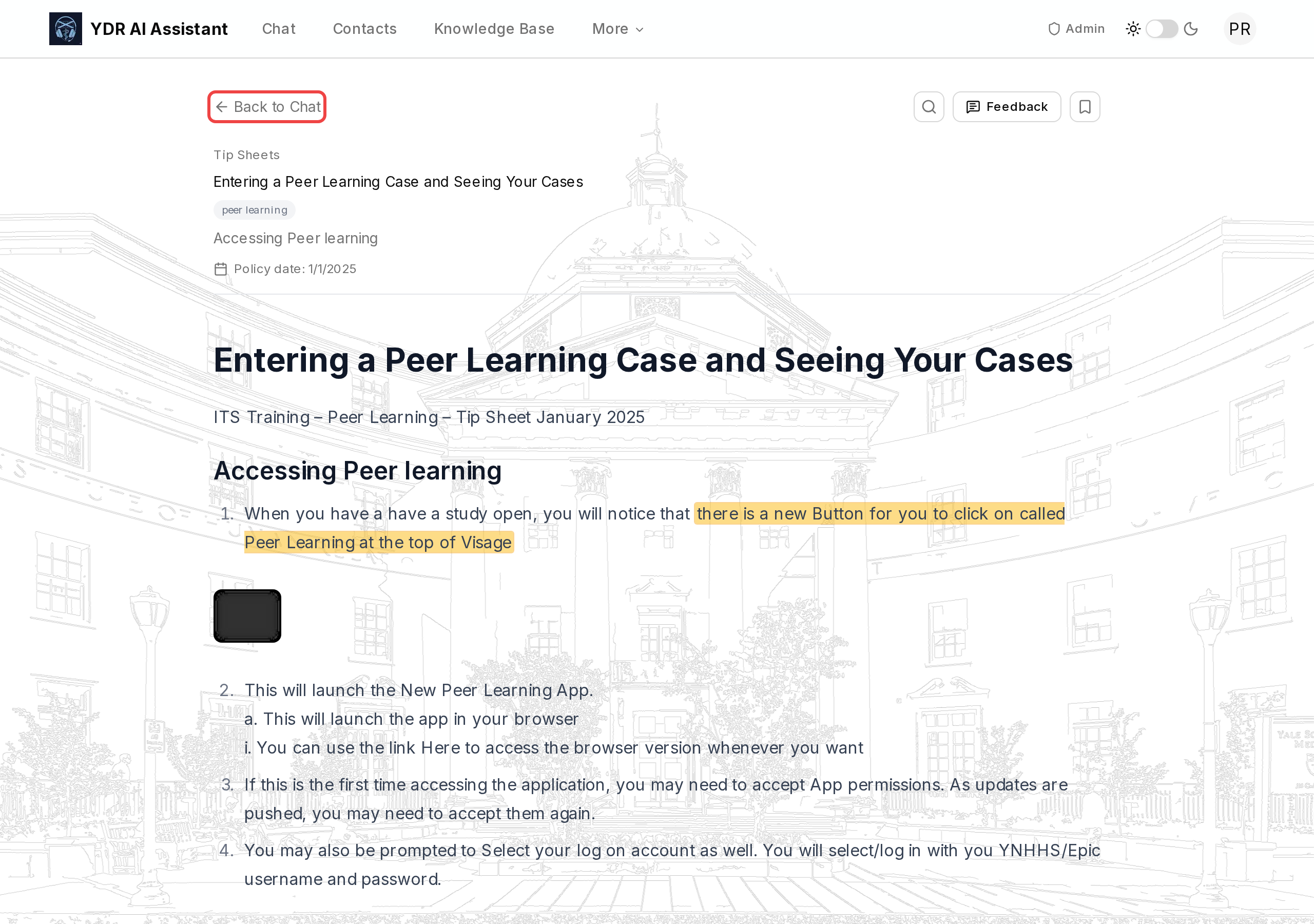
When you arrive at a document by clicking a citation in the chat, the back button at the top-left of the document reads Back to Chat and takes you straight back to the conversation you came from. (When you open a document by browsing the Knowledge Base yourself, that same button reads Back to Policies — it always returns you to where you started.)
To dismiss the highlighted passage, click anywhere on the page or press Esc. The page is otherwise fully usable: scroll, search, bookmark, give feedback, just like any other document.
Why this matters. A chatbot answer is only as trustworthy as the source it points to. If something in an answer surprises you, click the passage — it should take less than two seconds to read the original sentence and decide whether the assistant summarized it correctly.
Tip — give it context, not just a keyword
The assistant works best when your question reads like something you'd ask a knowledgeable colleague, not a search-engine query. A short, vague request like "contrast" or "call schedule" gives the model almost nothing to go on, and you'll often get back a generic answer — or, worse, a confidently wrong one about the wrong topic entirely.
A few habits that make a real difference:
- Say what you're actually trying to do. "I'm pre-medicating a patient with a prior contrast reaction for a CT in the morning — what's the protocol?" beats "contrast prep" every time.
- Name the site, rotation, or system if it matters. "Night float at YSC", "RAD AI Reporting", "breast imaging at Greenwich" — these pin the answer to the right document.
- One question per message is usually best. If you have several unrelated things to ask, send them as separate messages so the assistant can route each one to the right specialist.
- If the first answer is off, don't start over — reply to it. Add the missing context ("sorry, I meant the YNHH adult protocol, not pediatric") and the assistant will refine its answer instead of hallucinating a new one from scratch.
A few extra seconds spent framing the question is almost always faster than re-asking, and the answer will be more accurate.
What the assistant will not do
The assistant is deliberately scoped. It will decline to answer:
- General clinical questions unrelated to YDR resources (use UpToDate or other clinical references).
- Anything involving patient identifiers or protected health information.
- Questions about other departments or institutions.
The # shortcut for quick contact lookup
With great thanks to Dr. Gowthaman Gunabushanam for suggesting this feature and helping in its development.
Typing # followed by a few letters of a name inside the chat
opens an instant contact lookup, without running a full question. It
is the fastest way to grab a phone number while you are in the middle
of another conversation.
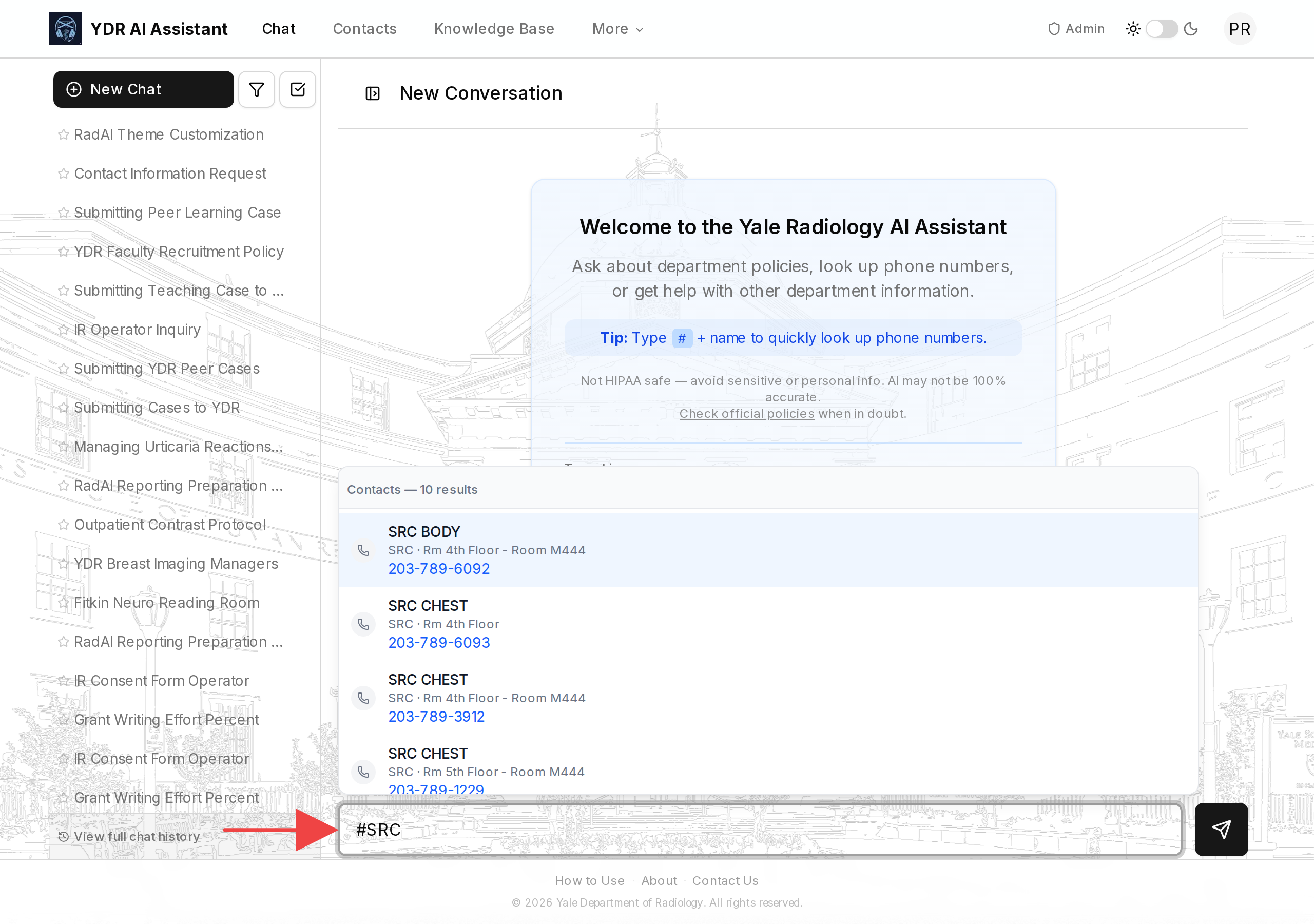
Use the up/down arrows to move through matches, Enter to select, and Esc to close the lookup. Like the Contacts page itself, this shortcut goes straight to the database — the AI is not involved, so no contact details ever leave Yale.
Asking the chat about contacts (the AI route)
If you ask a fuller question — "List the senior managers for breast imaging across all sites, with their phone numbers" — the assistant will search the directory for you and reply with a structured list. Phone numbers and emails appear as tappable links (call or compose), and you will see the privacy line directly below the message:
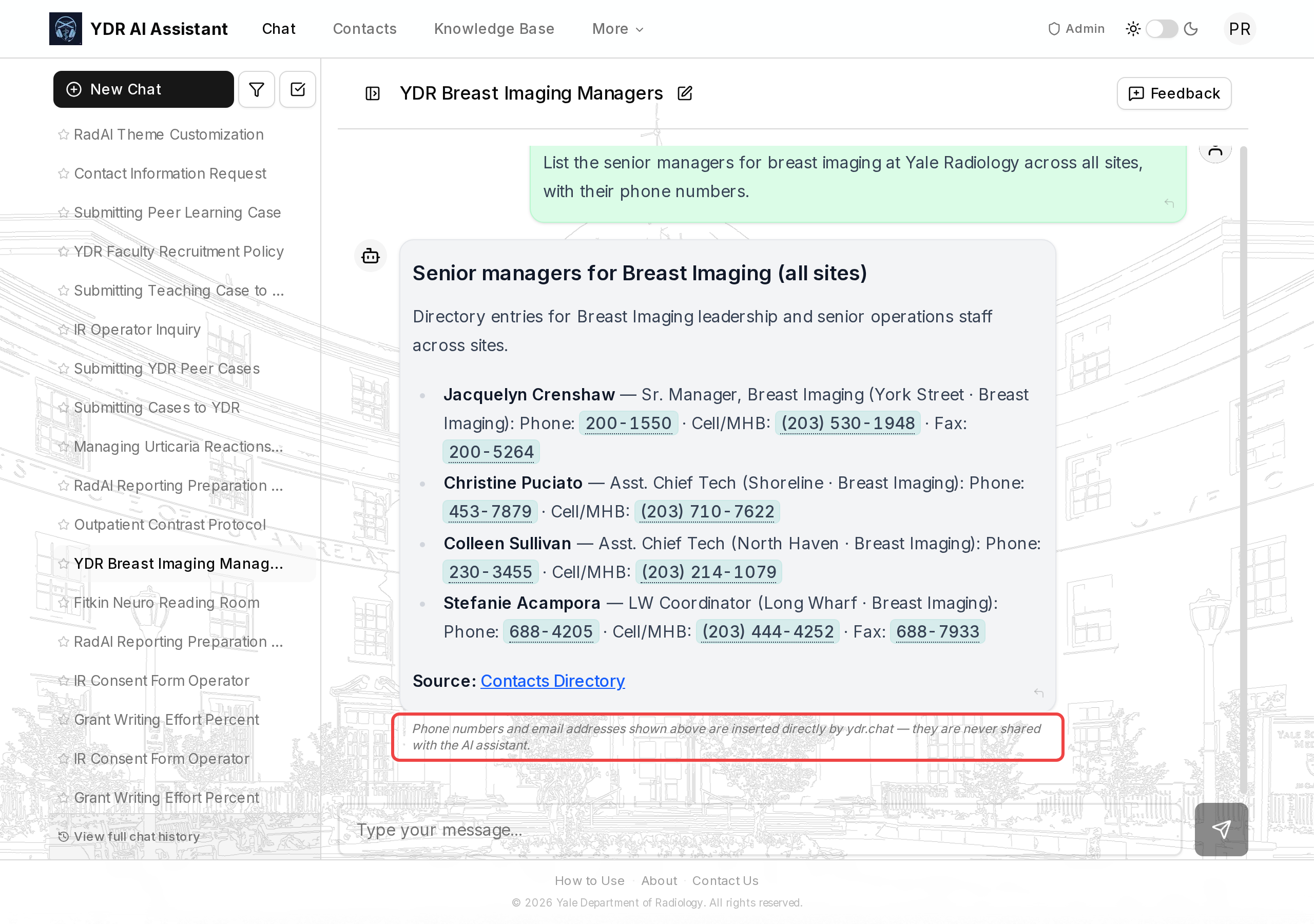
This is the blinding feature described in section 4 in action: the
model itself only ever saw placeholder tokens like
{{PHONE_MAIN:1317}}. The real numbers were stitched back in by the
server, last, just before showing you the answer.
Saving and managing your chats
Every conversation you have is saved privately to your account. You can see past chats in the left sidebar on the chat page, or open the full History page from the More menu in the top navigation (the sidebar also has a View full chat history link at the bottom).
- Bookmark a chat by clicking the ⭐ star icon next to it in the sidebar. Bookmarked chats are pinned to the top and kept indefinitely.
- Unbookmarked chats are automatically removed after 30 days to keep the history tidy. If you want to keep something, bookmark it.
- Reply to a specific earlier message by hovering it and clicking the reply icon — useful for long conversations where you want the assistant to focus on one earlier turn.
Reminders
- Do not enter PHI. (Yes, again — it is that important.)
- Verify anything that does not sound right at first glance against the real source document before acting on it. Citation passages exist precisely so you can do this in two clicks.
- If the assistant is wrong, the Feedback button exists for exactly that — see the next section.
6. Feedback & reporting issues
When something is unclear, wrong, or just not great, tell us. Your feedback is how this assistant gets better.
Feedback on a specific conversation
Every chat has a Feedback button in its header. Clicking it opens a short form:
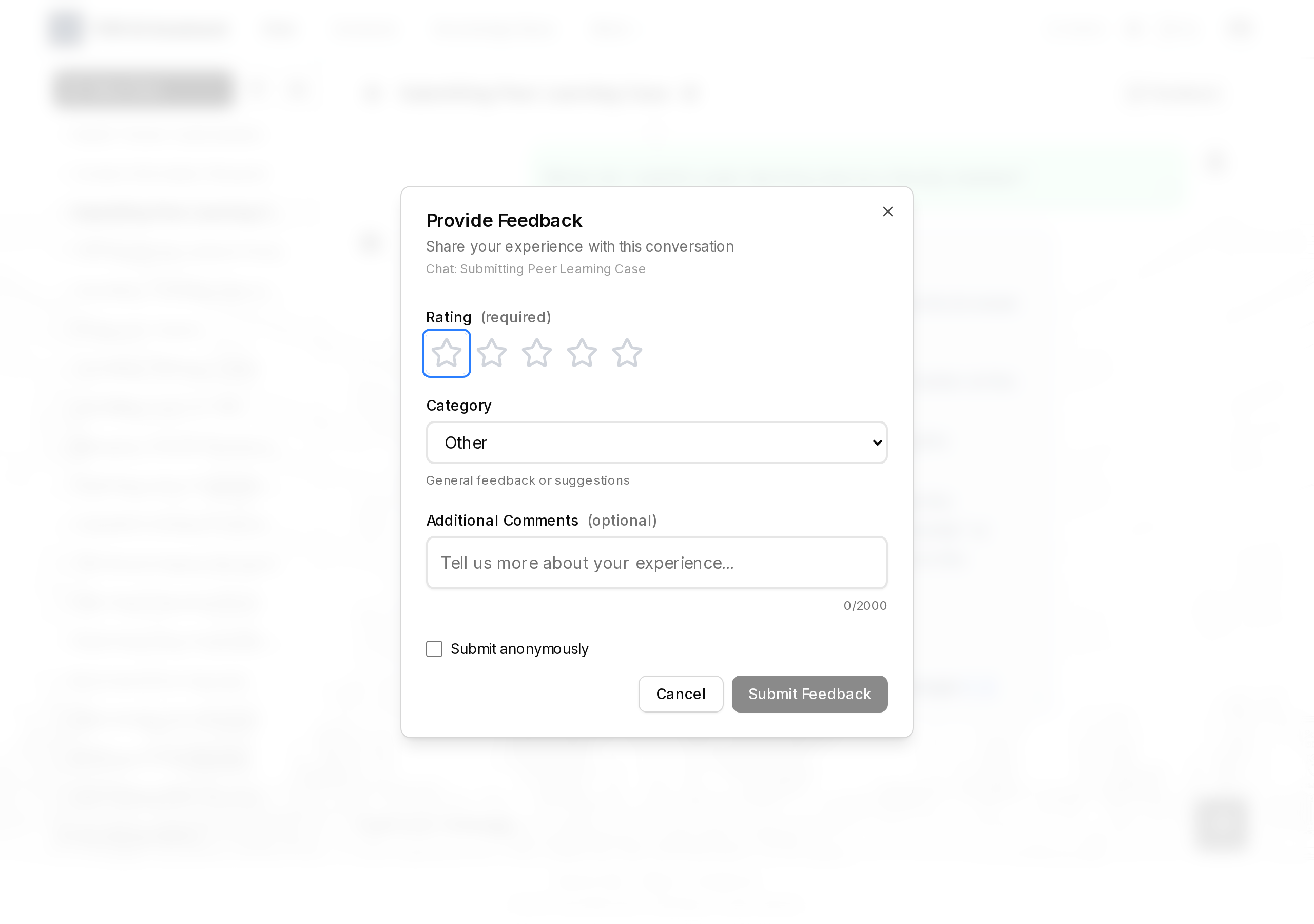
Pick a rating, choose a category (Content Issue, Technical Issue, or Other), and optionally add a comment. You can submit anonymously if you prefer — we still see your feedback, just not who sent it.
Use Content Issue when:
- The assistant's answer was wrong or outdated.
- A cited document contains incorrect information.
- An answer was missing something important.
Use Technical Issue when the chat itself misbehaves — slow, streaming stops, error messages, UI glitches.
General questions and inquiries
For anything that is not tied to a specific chat — account access problems, a suggestion, a question you would rather email — use the Contact Us form (Contact link in the footer, or navigate to /contact). Messages go to the YDR team and we will reply by email.
7. FAQ
Q: It won't let me sign in. What do I do? A: Make sure you are using your Yale NetID and Yale password, not your YNHH credentials. At a reading-room workstation, open an Incognito / InPrivate window (Edge: Ctrl + Shift + N) before signing in. If it still fails, email us.
Q: I can't find a phone number.
A: Try the Contacts page or #name in the chat. If the person or
area is genuinely missing from the directory, use the Contact Us
form so we can add them.
Q: The assistant gave me wrong or outdated information. A: Click Feedback on that chat and choose Content Issue. Please always verify clinically consequential information against the original policy — clicking a passage link in the answer takes you straight to the highlighted source paragraph.
Q: Is it safe to paste patient information into a chat? A: No. The assistant is not HIPAA-compliant. Do not enter patient identifiers of any kind.
Q: Are phone numbers and emails sent to the AI when I ask a contacts question? A: No. The model only ever sees placeholder tokens; the real numbers and addresses are inserted by the server right before the answer is shown. See section 4 for the full explanation.
Q: Will it remember my chats? A: Yes — they are saved privately to your account. Bookmark the ones you want to keep; anything unbookmarked is auto-removed after 30 days.
Q: Can technicians, nurses, or other hospital staff use this? A: Not at this time. Access is limited to YDR residents, fellows, and attendings.
Q: Can it answer general clinical questions? A: Intentionally no. It stays focused on YDR department resources. For clinical reference, use UpToDate or similar tools.
Q: Where do the answers come from? A: Department-curated policies and SOPs, trainee resources that are also on YaleRadres.com, the tips-and-tricks library (including RAD AI Reporting docs), the departmental contacts directory, and the YaleRadRes schedule API. Nothing is invented.
Q: The site seems down. What now? A: Try again in a few minutes — it could be a short update window or a temporary connectivity issue on your end. If the problem persists, email us (below).
Q: Where can I find this guide again later?
A: From the How to Use link in the footer of any page, or at
ydr.chat/how-to-use. The PDF version of this manual lives with the
YDR team.
8. Help and contact
For anything this guide does not answer:
Email: contact@ydrp.chat
Or use the Contact Us form at ydr.chat/contact.
The team
Built and maintained by
Trainee-related content collected and curated by
- Emily Barricelli, MD
- Jannah Wing, MD, ME
- Nhu Nguyen, MD
- Muhammad Zaid Qureshi, MBBS
- Jeffers Nguyen, MD
Users and content managed by
Supervised by
Feel free to reach out to any of us directly if you prefer, or use the email above to reach the team as a whole.
9. Acknowledgements
We are grateful to the leadership of the Yale Biomedical Imaging Institute — in particular Dr. Georges El Fakhri and Dr. Thibault Marin — for the infrastructural support that made the early development of this AI Assistant possible.
We also thank the many Yale Department of Radiology faculty who shared their support, guidance, and suggestions throughout the development of this chatbot, in particular Dr. Gowthaman Gunabushanam, Dr. Jay Pahade, Dr. Jamal Bokhari, and Dr. Mahan Mathur.
Finally, we would like to thank Dr. Christopher Whitlow and the entire Yale Department of Radiology leadership for their steadfast support of this initiative.
YDR.chat — Yale Department of Radiology AI Assistant.
Quick Start Guide, v1.2 — 2026-04-27.